Bleepster vs YouTube Restricted Mode: Which Job Each Does
Restricted Mode hides whole videos; Bleepster mutes swear words inside captioned videos. Compare what each filters, where each falls short, and when to use both.
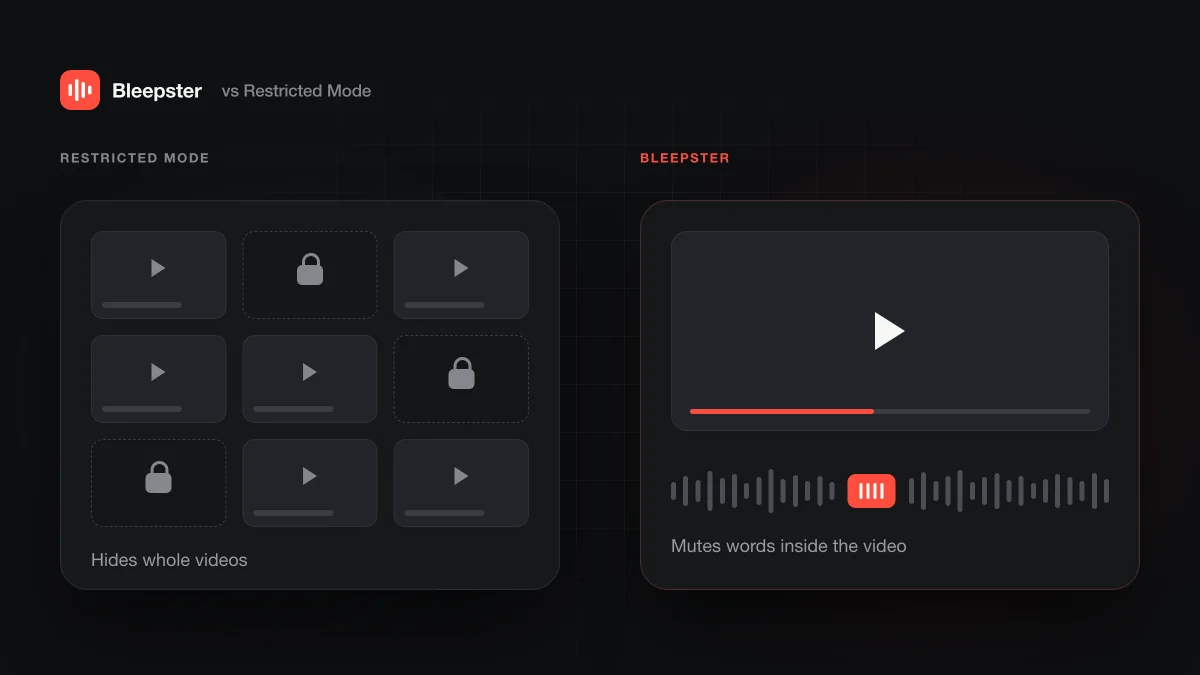
Restricted Mode and Bleepster do different jobs. Restricted Mode is a free YouTube setting that hides whole videos YouTube's systems judge to be mature, on any device where you turn it on. Bleepster is a Chrome extension for desktop that mutes or bleeps swear words inside a captioned video that plays. Many families use both.
What's the difference in one sentence?
Restricted Mode decides whether a video shows up at all, while Bleepster lets a video play and silences the strong language inside it. One works on the catalog, the other on the soundtrack of the video you chose.
That difference explains almost everything else. A video hidden by Restricted Mode never reaches your child, mild or not. A video that Restricted Mode lets through plays exactly as uploaded. Bleepster has no say over which videos appear, but it can quiet the few words you object to in a video you were happy to allow.
| Feature | YouTube Restricted Mode | Bleepster |
|---|---|---|
| What it acts on | Which videos are available in search, recommendations and playback | The audio of the YouTube video playing in your Chrome tab |
| Unit it filters | The whole video: shown or hidden | A word span: muted or bleeped at the moment it is spoken |
| Needs captions | No | Yes. No captions means nothing to analyze |
| Devices | Set per browser or device, and per profile | YouTube in desktop Chrome only. Not the phone, tablet or TV apps, or YouTube Kids |
| Comments | Hidden while it is on | Not changed |
| Cost | Free | 10 new videos free, then $4.99/month or $19.99 once |
| Who controls it | The viewer, a parent through Family Link, or a network administrator | Whoever uses the Chrome profile. An optional Parent PIN locks the settings |
What does Restricted Mode filter, and how?
Restricted Mode filters videos, using automated signals about each one. Google's Restricted Mode help pagesays it uses "many signals, like video title, description, metadata", along with Community Guidelines reviews and age restrictions.
Language is one of the things it looks for. YouTube's creator help pagelists inappropriate language, including profanity, among the content that can keep a video out of Restricted Mode, next to drugs, sexual situations, violence and mature subjects. The same page names "the language used in the video" as one of the automated signals. Google doesn't say how that language is read. In an April 2017 update, YouTube told creators that profanity and strong language would likely make a video unavailable.
The result is a yes or no for the whole video. For the details of what gets hidden, see what Restricted Mode actually hides, which also has the steps for turning it on and locking it.
What does Bleepster filter, and how?
Bleepster filters the spoken words in a captioned YouTube video, by reading the caption track and muting the audio where strong profanity appears. It is an independent Chrome extension for desktop and isn't affiliated with YouTube or Google.
When a video starts, Bleepster reads its captions and sends the caption text to its own AI service, which is included, so there is no API key to set up. The AI flags strong profanity and obscenity in context, including disguised spellings, in any caption language. Bleepster then mutes those moments in the tab, with a bleep by default or plain silence if you prefer. The video's audio is never uploaded. There is a fuller walkthrough in how Bleepster works.
Bleepster leaves mild words alone, and you can't add your own words to a list. Timing comes from the captions, so it is only as good as they are. If you want to see how this compares with older keyword filters, read AI vs word-list profanity filters.
Where does each one fall short?
Each tool misses what the other catches, and neither is complete on its own. Knowing the gaps helps you decide what to pair them with.
Restricted Mode
YouTube says plainly that its automated system sometimes makes mistakes, and in its March 2017 explainer it admitted the system can misread context and nuance. Those mistakes cut both ways. A vlog with a clean title and a few swear words can stay visible and play unedited. An educational video can be hidden even though you wanted it.
It also has to be switched on in every browser and every profile, according to Google. And it takes comments away entirely: Google lists Restricted Mode as one reason comments can be turned off. Some parents count that as a plus. If you want to know more, we cover comments under Restricted Mode and supervised accounts separately.
Bleepster
With no captions, Bleepster has nothing to analyze, and the popup says so instead of pretending the video is covered. Wrong or late captions lead to missed or mistimed mutes, and the AI itself can make mistakes. Live streams aren't supported while they are live.
Bleepster also doesn't hide or block videos, filter what is on screen, or touch comments. A video full of mature themes but no strong language plays exactly as it would without the extension. That is the job Restricted Mode is there for.
Which should you use, or both?
On a desktop computer where a child watches YouTube in Chrome, using both covers the most ground. Elsewhere, Restricted Mode is the option available to you. The table matches common situations to a setup.
| Situation | Suggested setup | Why |
|---|---|---|
| Shared family PC | Restricted Mode on in each browser profile, plus Bleepster in Chrome | Restricted Mode thins out mature videos. Bleepster quiets swearing in the captioned videos that remain. A Parent PIN keeps Bleepster's settings locked. |
| Teen's own laptop | Bleepster in the teen's Chrome profile, Restricted Mode optional | Restricted Mode can hide a lot of what older kids want to watch. Muting words keeps those videos available. Premium covers one household on up to 5 devices or Chrome profiles. |
| Teacher showing a video in class | The school's Restricted Mode setting, plus Bleepster in Chrome on the teacher's own computer | The school setting narrows what students can find. Bleepster mutes swearing in the captioned clip on the projector. Your IT admin decides which extensions can be installed. |
| Phone, tablet or TV | Restricted Mode on that device, or the account's supervised settings | Bleepster only runs in desktop Chrome, so it can't help in the YouTube apps. |
One more setting is worth a look on any device. Turning off autoplay stops a video you checked from rolling into one you didn't. Google says autoplay is off by default for users aged 13 to 17. For a side-by-side of every method, including YouTube Kids and supervised accounts, see every way to filter profanity on YouTube.
How much does each cost?
Restricted Mode is free and built into YouTube. Bleepster is free for your first 10 newly analyzed videos, and rewatching those stays free.
After that, Premium is $4.99 a month, or $19.99 once for lifetime access with no subscription. Either plan covers one household on up to 5 devices or Chrome profiles. The pricing page has the full details. Since Restricted Mode costs nothing, the real question is whether its gaps matter for the videos your family actually watches.
Frequently asked questions
Can I use Restricted Mode and Bleepster at the same time?
Yes. They don't conflict. Restricted Mode decides which videos appear, and Bleepster mutes strong profanity in the captioned videos that play in desktop Chrome.
Does Restricted Mode mute swear words?
No. Restricted Mode hides or shows whole videos. A video it allows plays exactly as uploaded, with every word included.
Does Bleepster hide mature videos?
No. Bleepster doesn't block or hide videos, and it doesn't filter visuals. It only mutes or bleeps strong profanity it finds in a video's captions.
Does either one work in the YouTube phone app?
Restricted Mode does, but you have to turn it on for each device. Bleepster works only on YouTube in Chrome on a desktop or laptop computer.
Is Bleepster made by YouTube?
No. Bleepster is an independent Chrome extension and isn't affiliated with YouTube or Google.