Bleepster guide
YouTube Profanity Filter for Classroom Teachers
Show YouTube videos in class with fewer surprises. What school Restricted Mode misses, how caption-based muting helps on the teacher's computer, and what to check first.
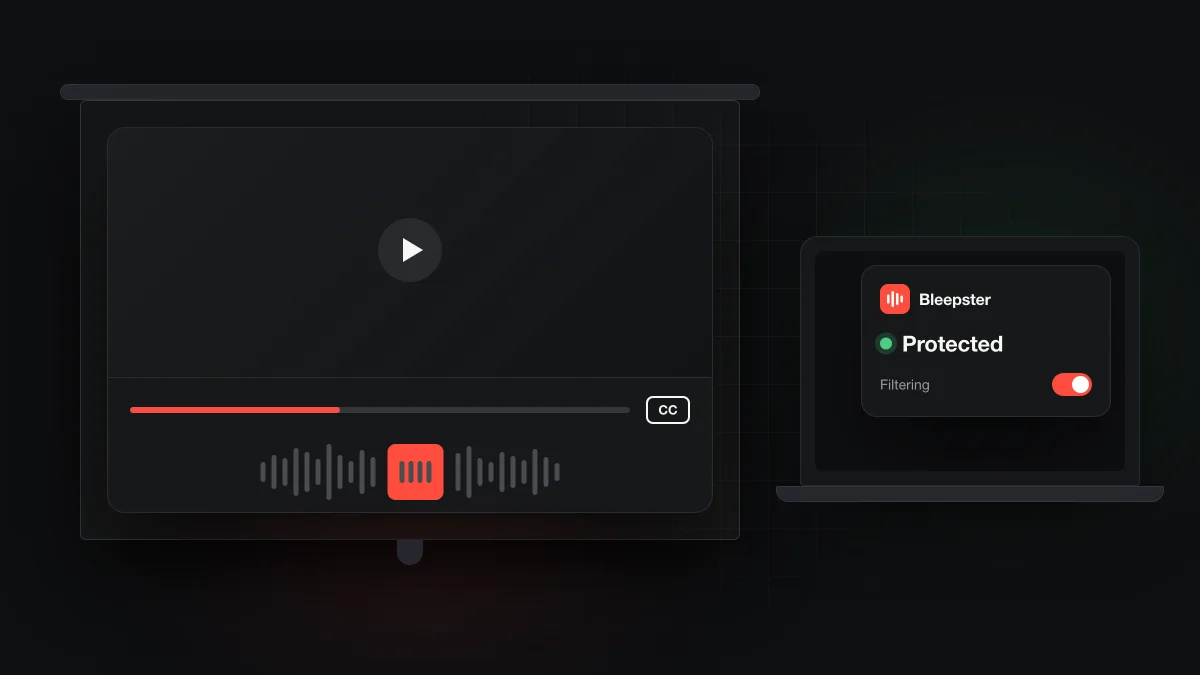
School Restricted Mode hides many mature videos, but it doesn't mute a word inside a video you've chosen to show. Bleepster can. It's a Chrome extension that reads a YouTube video's captions, finds strong profanity with AI and mutes or bleeps it. You can use it on your own teaching computer, on the Free plan or Premium.
What can go wrong when you play YouTube in class?
Usually it's one word. You previewed the first two minutes, the clip is on topic, and then a speaker swears halfway through while thirty students are listening. Pausing late only draws attention to it.
The other surprises are mostly outside the video: an ad before it starts, a comment section on the projector, or a recommended video that autoplays when yours ends. Those are browser and school-settings problems. Bleepster only deals with the first one, the audio inside a captioned video.
Does school Restricted Mode stop swearing inside a video?
Not reliably, and never word by word. Restricted Mode decides whether a whole video is available. Google's creator help lists "inappropriate language, including profanity" among the reasons a video can be hidden in Restricted Mode, and says its automated system sometimes makes mistakes.
Google's admin help is direct about the strict setting: it "doesn't block all videos" and leaves some available after automated filtering. YouTube said back in 2017 that the system can make mistakes in understanding context and nuances. So a video that passes Restricted Mode can still contain a word you don't want in the room. We look at this in more detail in does YouTube Restricted Mode filter swearing.
What does Restricted Mode change for teachers and students?
It hides more than videos. In a Google Workspace school, an admin can set Strict or Moderate restricted access, and under Restricted Mode users can't see comments or upload videos. Those admin settings apply to signed-in users and don't apply to signed-out ones.
Admins can also let verified Google Classroom teachers approve videos, so a blocked clip can be made available to students. Google Classroom help describes the Strict, Moderate and approver permissions. On other networks, Google notes that computers in schools and libraries may have Restricted Mode turned on by a network administrator.
| Layer | Acts on | Who sets it | Needs captions | Limits |
|---|---|---|---|---|
| School Restricted Mode (Workspace) | Which videos are available; hides comments | Workspace admin | No | Strict doesn't block all videos; doesn't apply to signed-out users |
| Teacher-approved videos | Makes a specific blocked video available | Admin enables it; verified Classroom teachers approve | No | Approval is about the whole video, not what's said in it |
| Bleepster on the teacher's computer | Strong profanity in the audio of the video you play | You, in your own Chrome profile | Yes | Desktop Chrome on youtube.com only; no live streams while live; caption errors can cause a missed mute |
The layers don't compete. Restricted Mode narrows what's available, and Bleepster handles the words inside the video you pick. For a side-by-side of just these two, see Bleepster vs YouTube Restricted Mode.
How does caption-based muting help when you're projecting a video?
It quiets the words students would otherwise hear. Bleepster is a caption-based profanity filter for YouTube: it reads the video's caption track, its AI flags strong profanity in any caption language, and the extension mutes or bleeps those moments in your Chrome tab. The video's audio is never uploaded. Mild words aren't flagged.
The bleep is on by default and you can switch it to silence, which is often less distracting in a classroom. Either way it's audio only. Nothing changes on the screen, so nothing extra appears on the projector.
Two settings help in class. Safe start is optional and off by default. When on, it pauses a new video for about three seconds while the opening is checked. Parent PIN locks the Bleepster popup with a 4-digit PIN, so a student at your keyboard can't switch filtering off.
The limits matter too. Bleepster runs in desktop Chrome on youtube.com, not in embedded players inside slides or learning platforms. It needs captions, and caption mistakes can mean a missed or late mute. Live streams aren't filtered while they're live. To install it and run a first test, follow set up Bleepster.
What should you check before class?
A few minutes of checking before students arrive saves most surprises. Run through this on the computer you'll project from:
- Look for the CC icon at the bottom right of the player. Google says it appears only if captions are available. No captions means Bleepster has nothing to read.
- Preview the clip, including the part you plan to show, with Bleepster switched on.
- Open the Bleepster popup and check the status. Protected or Nothing to mute means the captions were analyzed. No subtitles here means the video can't be filtered. The status guide explains each message.
- Turn on Safe start if you want a short pause at the start of each new video.
- Set a Parent PIN if students use your computer.
- Have a backup clip ready in case the video has no captions or the status isn't what you expected.
If captions are missing, there's usually a reason, such as a very new upload, poor sound or overlapping speakers. Our guide to why a YouTube video has no captions covers each one.
Can you install extensions on a school-managed computer?
That's up to your school's IT admin. Google says a Chrome Enterprise admin can control which apps or extensions users can install on managed Chrome browsers and ChromeOS devices. Some schools allow everything except a blocklist, others allow only an approved list, and some let users request extensions.
This page is about your own computer and your own Chrome profile. If your teaching laptop is managed by the school, ask IT before you plan around Bleepster. It doesn't get around school filters or admin policies, and it isn't sold as a school or district license.
What does it cost for a teacher?
You can start free. The Free plan covers 10newly analyzed videos, and rewatching one of them doesn't count again. Premium is $4.99 a month or $19.99 once for lifetime access, with no subscription on the lifetime option. It covers one household and up to 5 devices or Chrome profiles. See the pricing page for details.
Frequently asked questions
Does Bleepster remove ads or comments?
No. Bleepster only mutes or bleeps flagged words in a video's audio. It doesn't hide ads, comments or recommendations, and it doesn't block videos.
Does Bleepster work on school Chromebooks?
We haven't confirmed support on school-managed Chromebooks; your IT admin controls which extensions can be installed. Bleepster is built for desktop Chrome on your own computer.
What if the video I want to show has no captions?
Then Bleepster can't filter it, and the popup says No subtitles here. Pick another clip with captions, or preview the whole video yourself before class.
Will students see the bleep?
No. Muting is audio only, so nothing is added to the video on the projector. Students hear a short bleep or silence, depending on your setting.
Is Bleepster affiliated with YouTube or Google?
No. Bleepster is an independent Chrome extension and isn't affiliated with, endorsed by or connected to YouTube or Google.