Bleepster help
How to Set Up Bleepster's Parent PIN
Set a 4-digit Parent PIN so Bleepster's on/off switch and settings stay locked. Where to find it, what it locks, and what to do if you forget it.
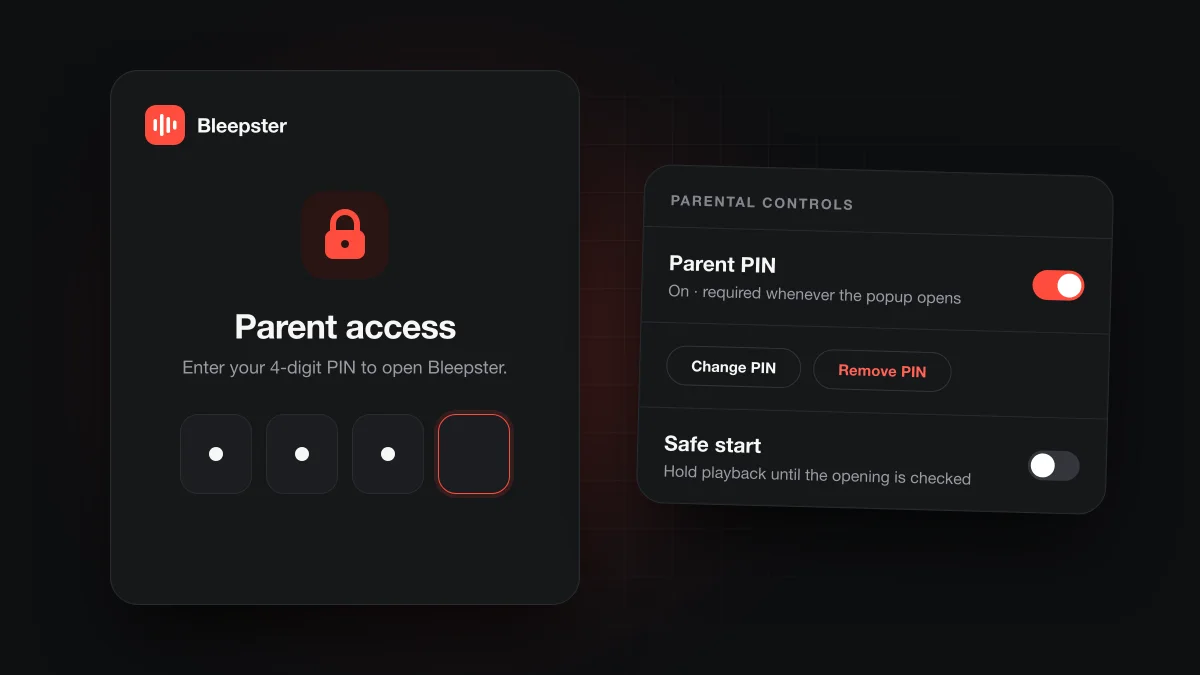
Bleepster's Parent PIN is a 4-digit code that locks the extension popup. Once it is set, the popup opens on a Parent access screen, and the on/off switch, settings and plan options stay hidden until someone enters the PIN. Set it in Settings, under Parental controls.
How do you set a Parent PIN?
- Click the Bleepster icon in Chrome's toolbar to open the popup.
- Open Settings and find the Parental controls group.
- Turn on the Parent PIN switch.
- Type four digits under New PIN, repeat them under Confirm PIN, and choose Save PIN.
When the PIN is active, the Parental controls row reads "On · required whenever the popup opens". If the two entries don't match, Bleepster says so and asks you to try again. The PIN must be exactly four digits.
What does the Parent PIN lock?
It locks the whole popup. Without the PIN, nobody can turn Bleepster off, change the bleep sound or Safe start, open the upgrade screen, or remove the PIN itself.
It does not lock anything on the YouTube page. Muting keeps working as usual while the popup is locked, and a child can still watch, pause and pick videos.
Where is the PIN stored?
Bleepster keeps only a salted hash of the PIN, not the digits, in the extension's local storage for that Chrome profile. It is not synced to other computers or profiles, so each Chrome profile that your child uses needs its own PIN. The how Bleepster works page covers what else stays on the device.
How do you change or remove the PIN?
Open the popup, enter the current PIN, and go to Settings. Under Parental controls you can choose Change PIN, Remove PIN, or turn the Parent PIN switch off. All three need the popup to be unlocked first.
What if you forget the PIN?
There is no PIN recovery inside the extension, because the PIN never leaves your computer. The way back in is to remove Bleepster from Chrome and add it again. Chrome deletes an extension's local data when it is removed, which clears the PIN along with Bleepster's local settings and cache. Then sign in again; your plan is tied to your account, not to the extension's local data.
What the PIN does not do
The Parent PIN protects Bleepster's own settings. It is not a device-wide parental control. It cannot stop someone from removing the extension through Chrome's settings, using another browser, or watching on a phone, tablet or TV. Pair it with account-level controls, which our YouTube Kids vs supervised accounts guide compares.
Frequently asked questions
Does the Parent PIN work on every computer?
No. It applies to the Chrome profile where you set it. Set a PIN in each profile your child uses for YouTube.
Is there a limit on wrong PIN attempts?
No. A wrong entry shows "Incorrect PIN. Try again." and the popup stays locked.
Is the Parent PIN a Premium feature?
No. Parent PIN is available on the Free plan too. See pricing for what Premium adds.