How to Turn Off YouTube Comments for Kids
Supervised kids see no comments at Older kids and read-only comments at Teens. How to turn comments off, why many kids' videos already have none, and what Restricted Mode does.
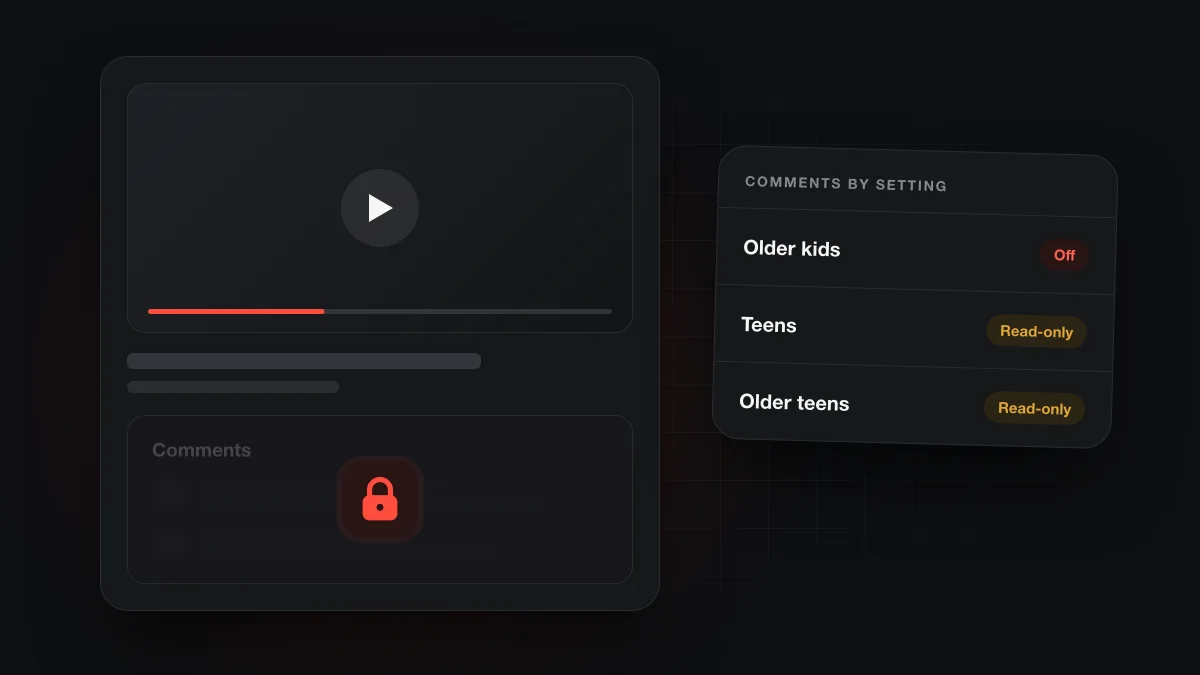
On a supervised YouTube account, the content setting decides comment access. Older kids can't read comments at all. Teens and Older teens can read them but can't post. To turn comments off completely, switch the child to Older kids. Made-for-kids videos have no comments, and Restricted Mode hides comments on every video.
Can kids see YouTube comments?
It depends on the content setting a parent picks for the supervised account. Google's list of supervised account features says the Older kids setting cannot read comments. Its page on comments for supervised accounts adds that kids under Teens and Older teens can read comments but not write them.
No supervised setting lets a child post a comment. The question for parents is only whether their child can read what other people wrote. The table below collects the situations Google documents.
| Setting or situation | Can read comments | Can post comments |
|---|---|---|
| Supervised account, Older kids | No (Google) | No (Google) |
| Supervised account, Teens | Yes, read-only (Google) | No (Google) |
| Supervised account, Older teens | Yes, read-only (Google) | No (Google) |
| Any account watching a made-for-kids video | No, comments are off (Google) | No (Google) |
| Any viewer with Restricted Mode on | No (Google) | No, comments are off (Google) |
If you read older articles on this, you may see setting names like Explore, Explore More and Most of YouTube. Google's current content settings page uses Older kids, Teens and Older teens, so use those names when you look for the menu.
How do you turn off YouTube comments completely for a child?
Switch the supervised account to the Older kids content setting. Google says switching to Older kids removes comment access. There is no separate comments switch in the parent controls Google documents, so the content setting is the lever.
You can change the setting from YouTube or from Family Link. Google's parental settings page gives these paths:
- In the YouTube app: sign in with the parent account, then go to You, then Settings, then Family Center. Pick your child's account to see its settings.
- In the Family Link app: select your child, then Controls, then Content restrictions, then YouTube.
- Choose Older kids as the content setting and save.
- On your child's device, open any regular video and check that the comment section no longer appears.
The trade-off is that Older kids also narrows which videos your child can watch. It is the strictest of the three supervised settings, and Google describes it as allowing only infrequent, mild language. An older child may lose access to videos they watch today. If the comments are the main worry, decide whether read-only access with YouTube's extra protections, covered below, is an acceptable middle ground. Our guide to YouTube Kids vs a supervised account explains how each setting changes the catalog.
Why are comments already turned off on many kids' videos?
Because the creator marked them as made for kids. Google lists features that made-for-kids videos don't have, and comments are on that list, along with live chat, notifications, the miniplayer and saving to a playlist. This applies to anyone watching the video, not only children.
Google's page on why comments are turned off gives a few other reasons. The channel owner may have disabled comments. Restricted Mode may be on, set by you or a system administrator. YouTube may also turn comments off itself for safety, for example to protect minors.
So if your child mostly watches cartoons, nursery content or other videos aimed at children, they may rarely see a comment section even on an unsupervised account. Videos made for a general audience, such as many gaming channels and vlogs, are a different story.
Does Restricted Mode hide YouTube comments?
Yes. Google's Restricted Mode help pagesays that when it is on, you can't view comments on the videos you watch. Google's Workspace admin page says the same for schools and organizations: users under Restricted Mode can't see comments.
This makes Restricted Mode the quickest way to hide comments on a shared family computer without touching anyone's account settings. Keep in mind that it works per browser and per profile, according to Google, so you need to turn it on in each one your child uses. It also hides some videos. What it does and doesn't catch is covered in what Restricted Mode actually hides.
What protections apply when kids can read comments?
YouTube adds several safeguards for supervised accounts on Teens and Older teens. According to Google's supervised comments page:
- Younger audiences get stricter comment filtering, so more comments are held back.
- Comments that contain third-party links are removed.
- Kids see reminders that comments are other people's opinions.
- Comments stay off on made-for-kids content.
These measures reduce the problem but don't remove it. A filtered comment section can still contain rude replies or strong language. If your teen reads comments, it is worth talking about what they might see and how to scroll past it.
What about the words spoken in the video itself?
Hiding comments deals with text under the video. It does nothing about what the people in the video say. A gaming stream or vlog with comments off can still have a host who swears every few minutes, and none of the settings above change the audio.
That is a separate job. Bleepster is an independent Chrome extension for desktop, not affiliated with YouTube or Google, that mutes or bleeps strong language inside YouTube videos. It reads the video's captions, uses included AI to find profanity, and lowers the audio at those moments while the video plays. It works on youtube.com in desktop Chrome, and only on videos that have captions.
Bleepster doesn't hide or filter comments, and it doesn't work in the YouTube app on phones, tablets or TVs. Think of it as a layer that sits next to the comment settings: they handle the text, it handles the spoken words on a family computer. The YouTube profanity filter for families page shows how households set it up.
If your child uses the YouTube Kids app rather than regular YouTube, read whether YouTube Kids has swearing. For the fast vertical feed, see whether YouTube Shorts are safe for kids.
Frequently asked questions
Can supervised kids post comments on YouTube?
No. Google says kids on the Teens and Older teens settings can read comments but not write them, and the Older kids setting has no comment access at all.
Can I hide comments without changing the content setting?
On a shared computer, yes. Turning on Restricted Mode hides comments on every video, but it has to be turned on in each browser and profile, and it also hides some videos.
Do the old setting names Explore and Most of YouTube still apply?
No. Those names come from older guides. Google's current supervised settings are Older kids, Teens and Older teens.
Are comments hidden on kids' videos?
Yes, on videos marked as made for kids. Google says made-for-kids watch pages don't have comments, for every viewer.
Does Bleepster hide YouTube comments?
No. Bleepster only mutes or bleeps strong language spoken in captioned YouTube videos in desktop Chrome. Use YouTube's content settings or Restricted Mode for comments.